
Managing departments and teams
Whether you’re a large company or a small business, INARI Booking lets you add an unlimited number of services. You can also manage your team: staff members or colleagues, linking them to the service provided and their personal calendar. Each worker’s schedule, services and rates can be configured independently.
Add a service and its options
INARI Booking lets you create a service with a wide range of available options. Define the visibility of each service as public or private (to make the service invisible to your customers).
- Define customer capacity for a single period of time
- Set an appointment time. You can take a break between appointments.
- Define the distinct duration of each service
- Define service category and staff members
- Set an appointment limit per customer
- …and more!

Service management

Add a new service
Keep your customers and staff informed with SMS and e-mail notifications
To avoid missing a reservation, INARI Booking lets you send reminder notifications to your employees by e-mail and SMS (optional).
You can also inform your customers of pending, approved or cancelled bookings. Notifications are customizable, so you can remind your customers with your own personal messages.
Set different prices for different staff members
With INARI Booking Pro, you can set different prices for staff with different skill levels. Your customers will be spoilt for choice.
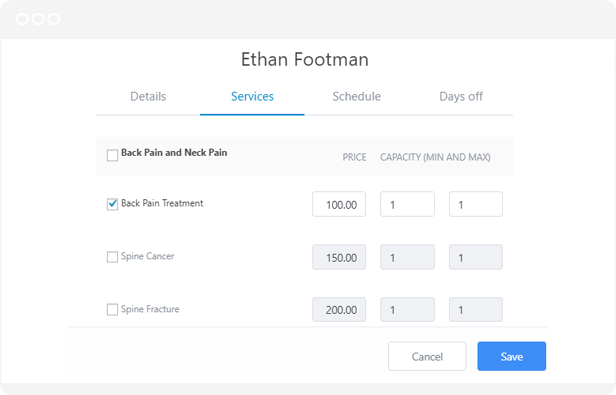
Integrating price and service
Add personalized schedules for each member of staff
INARI Booking allows you to create individual booking times for each member of staff, as well as adding breaks or vacations.
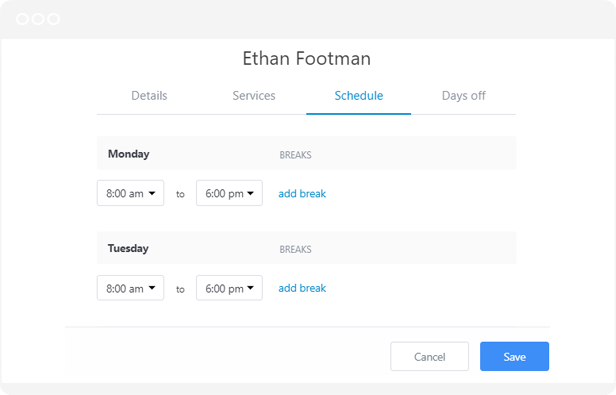
Add a schedule for each team member
Synchronize your availability with your personal agenda
INARI Booking can be integrated with Google Calendar for reservations for each member of staff.
Add weekends or days off
It’s very important to show customers weekends and holidays. With this appointment scheduling software, you can define weekends, public holidays or days off for all staff or for individual staff members.
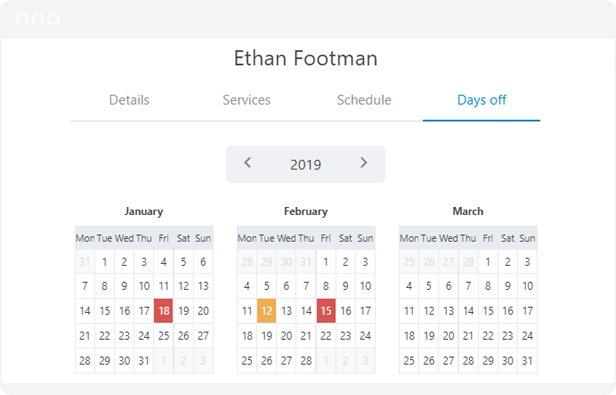
Workday management
Define appointment duration and break times
INARI Booking lets you define the duration and waiting time (the period of time between two appointments) for each service separately. For example, if you want to take a break between two appointments to prepare for the next ones, you can use “Front padding”.
Appointment cancellations
INARI Booking offers an on/off setting for creating WordPress accounts for all customers. Once activated, INARI Booking will automatically create an account for the customer and send them login details.
Customers need to log in with this information to view and cancel their appointments. You can also define the cancellation period, i.e. the time within which appointments can be canceled.
Offer your customers a promotional code or coupon
Customers expect offers and discounts. With INARI Booking pro, you can offer your customer a promotional code, to give a discount on any service.
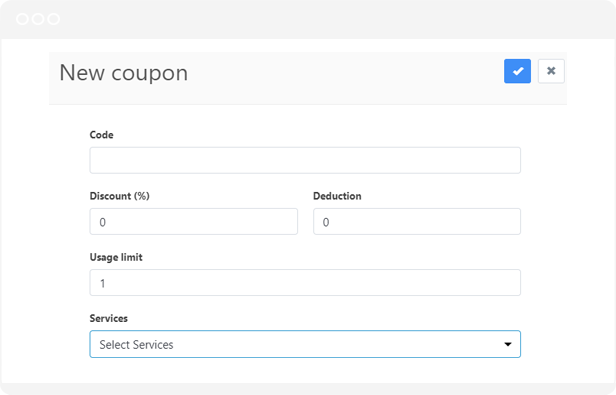
Create promotions with coupons
Secure online payments
If you want to collect payment online! Don’t worry, INARI Booking comes with various types of built-in payment options, helping you to ensure that your appointments are all paid for in advance or that a deposit has been received.
You also have the freedom to use this module as a free reservation by deactivating the reservation payment option. Reservation confirmation (manual or automatic)
There are two types of options available for confirming reservations in INARI Booking (Pending status or Approved status). If you choose the approved status, all appointments will be directly approved. If you choose pending or manual booking, the appointment remains pending until you confirm it.
Confirm reservations (manually or automatically)
There are two types of booking confirmation options available in INARI Booking (Pending status or Approved status). If you choose the approved status, all appointments will be directly approved. If you choose pending or manual booking, the appointment remains pending until you confirm it.
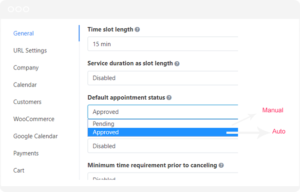
Approve reservations manually or automatically
Let your employees manage their reservations
By assigning a WordPress user to a staff member, you can authorize them to manage the admin panel. A user with the“Administrator ” role can access the staff member’s calendar and settings, while a ” user ” can only access his or her personal calendar and settings.

